
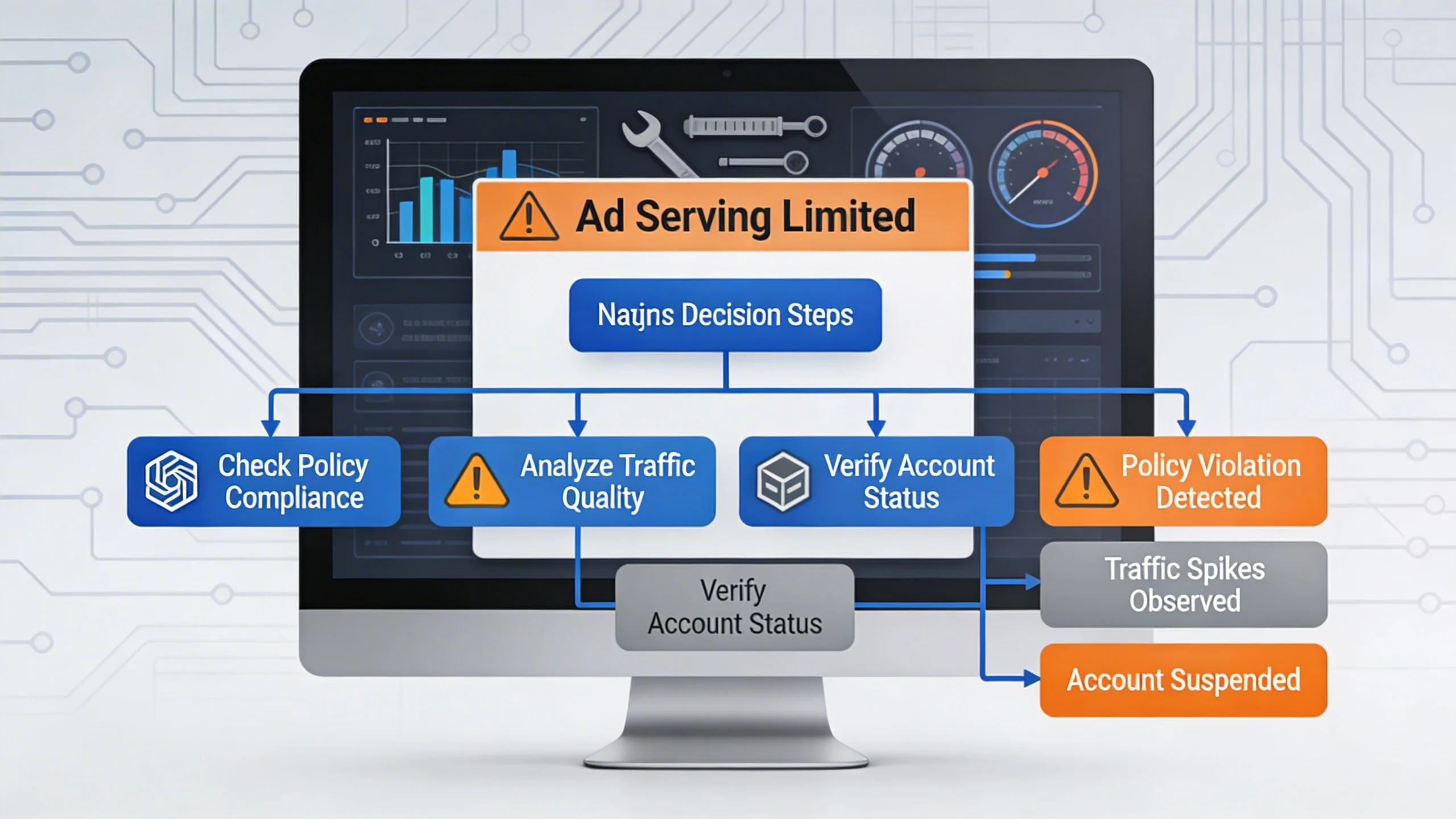
Part 1: The "Don't Panic" Introduction
Your heart sinks. You log into your Google AdSense or AdManager account and see the notification you’ve always dreaded: "Ad serving on your account is currently being limited." Your revenue just dropped off a cliff, and a cryptic message from Google is the only clue.
Take a deep breath. Don't panic. You're in the right place.
This is not a death sentence for your website. It’s a serious warning, but it is almost always fixable. This comprehensive guide will serve as your step-by-step action plan. We will walk you through understanding why this happened, provide a diagnostic checklist to find the root cause, give you actionable steps to fix it, and outline a long-term strategy to prevent it from ever happening again.
This guide is based on years of hands-on experience managing publisher accounts, navigating Google's complex policies, and successfully resolving this very issue for a portfolio of websites. Let's get your ads back on track.
Part 2: Understanding the "Why": What is Ad Serving Limitation and Why Does Google Do It?
Before you can fix the problem, you need to understand it. The "ad serving limited" status is a crucial tool Google uses to protect its advertising ecosystem.
What Does "Ad Serving Has Been Limited" Actually Mean?
Think of it as a protective measure, not a permanent ban. When Google's systems detect something unusual about your traffic or account, they limit the number of ads shown on your site. This is Google's way of hitting the pause button to assess a situation that could harm advertisers by wasting their budgets on invalid clicks or low-quality impressions.
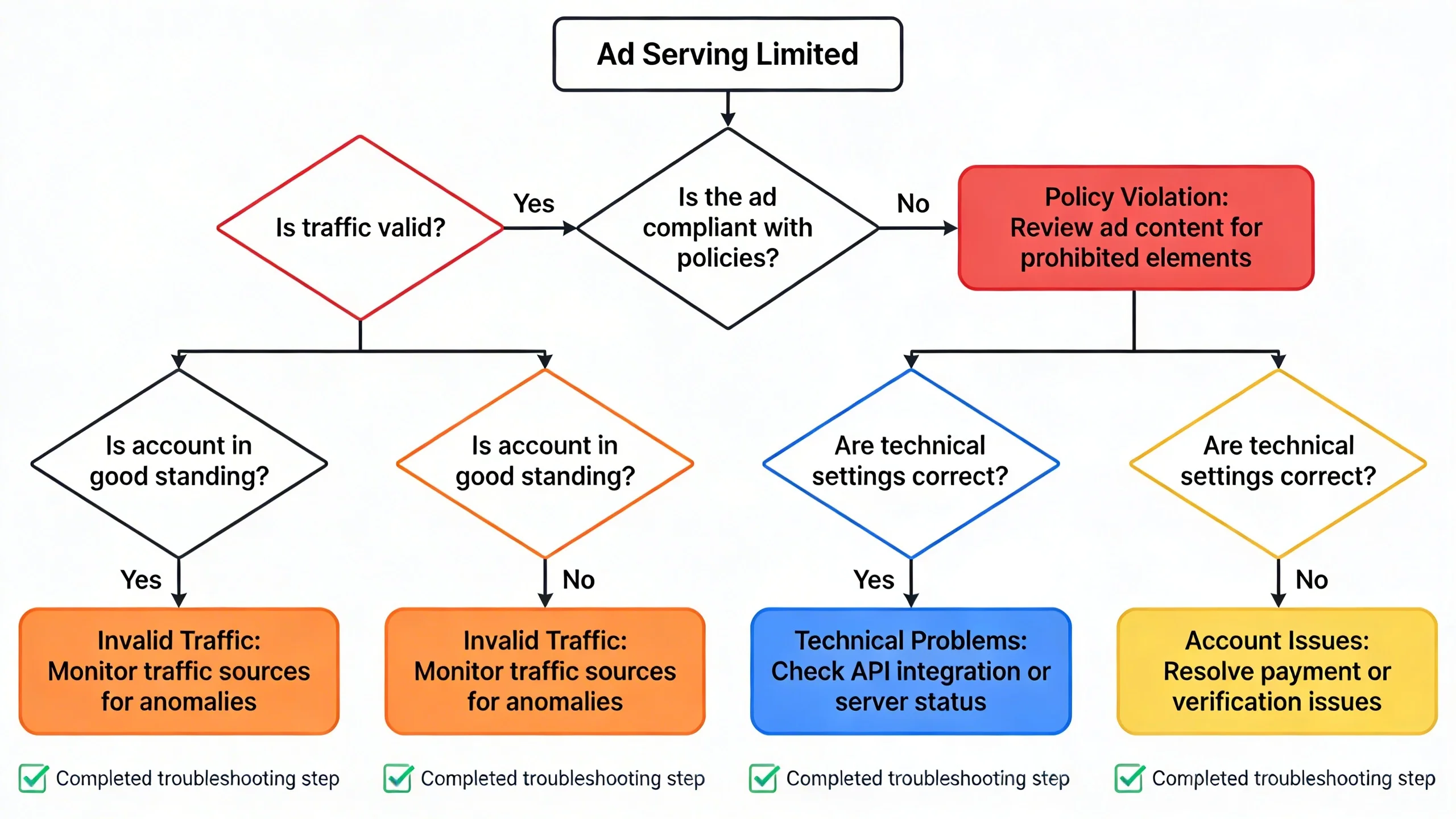
It’s crucial to differentiate this from a full account suspension. A limit is a temporary, often automated, safeguard. A suspension is a much more severe penalty. By acting on this warning now, you can avoid that far worse outcome.
The Two Main Culprits: Invalid Traffic & Account Assessment
The notification in your Policy Center will almost always point to one of two reasons. Understanding which one applies to you is the first step in your investigation.
Reason #1: Invalid Traffic Concerns (The Most Common Cause)
This is the reason behind the vast majority of ad serving limits. Google defines invalid traffic as any clicks or impressions that may artificially inflate an advertiser's costs or a publisher's earnings. It’s a broad term that covers a range of issues, from malicious bot attacks to simple mistakes in your ad layout.
Common sources of invalid traffic include:
- Bot Traffic & Scrapers: Automated scripts, crawlers, and bots that hit your site and generate fraudulent impressions, with no real human seeing the ads.
- Accidental Clicks: This is a huge one. Poor ad placements that trick genuine users into clicking are a major red flag. Examples include ads placed directly under navigation menus, ads that look like content buttons, or sticky ads that cover the user interface on mobile.
- Click Farms or Paid-to-Click (PTC) Schemes: The most blatant violation where individuals are paid to click on ads or visit websites. If you've ever bought cheap traffic, this could be the source.
- Unnatural Social Media Spikes: Driving large volumes of low-quality traffic from social media bots, click-bait groups, or traffic exchanges. A real user from Facebook is fine; a bot from a traffic exchange is not.
- Self-Clicking: It bears repeating: Never, ever click on your own ads, and don't ask friends or family to do so. Google’s algorithms are incredibly sophisticated at detecting this.
Reason #2: Your Account is Being Assessed
If you see this reason, you can relax a little. This is common for newer AdSense/AdManager accounts or for established accounts that have experienced a sudden, dramatic change in traffic (e.g., a post went viral).
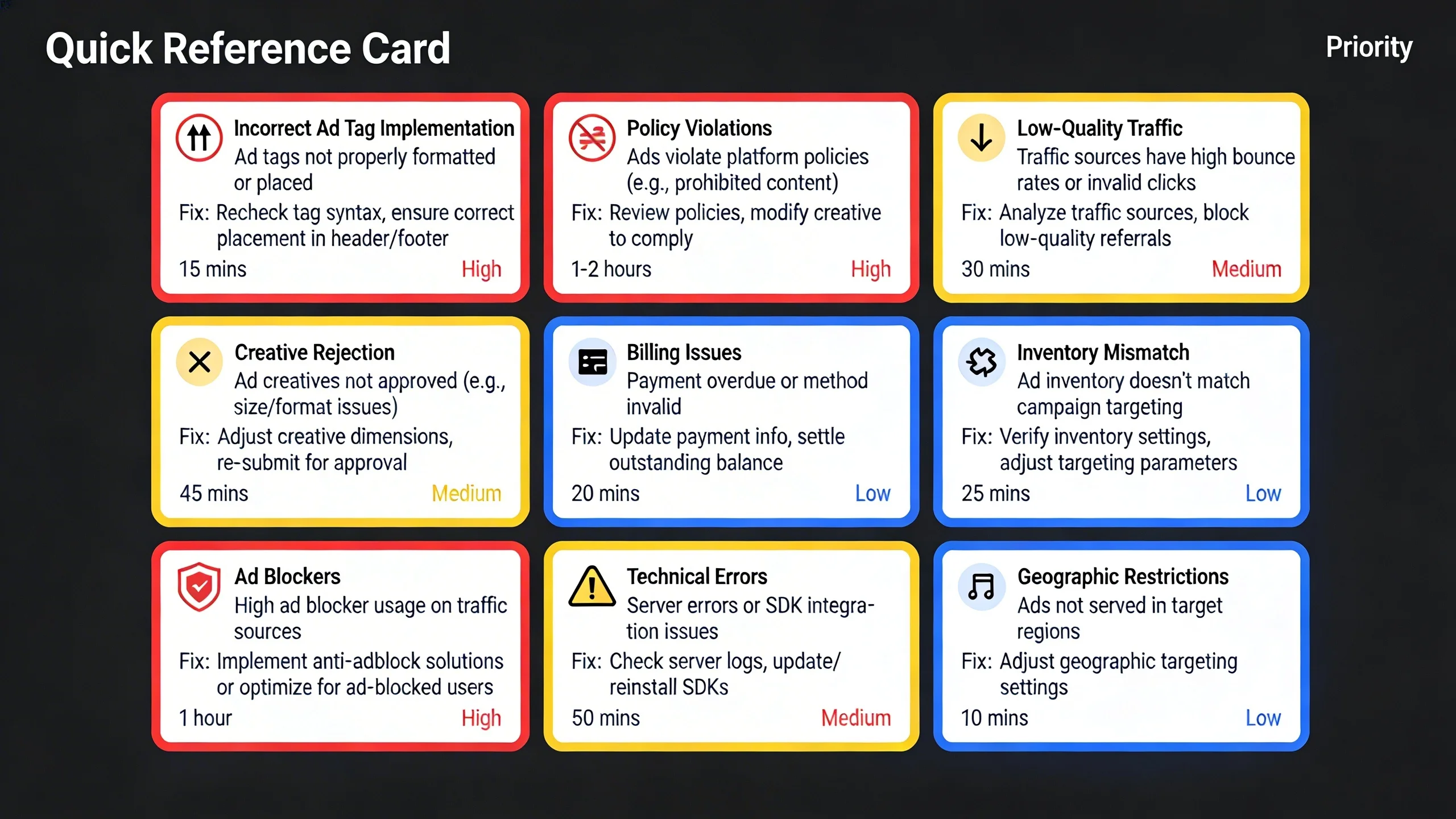
In this case, Google is simply taking some time to understand your traffic patterns, audience demographics, and content quality before fully opening the ad-serving floodgates. They want to verify that your traffic is legitimate and that your site is a good fit for their advertisers. While it’s frustrating to have your revenue throttled, think of this as a probationary period. It’s actually a good thing in the long run, as it establishes your account as a trusted partner.
Part 3: The Definitive 5-Step Action Plan to Fix Ad Serving Limits
Ready to get to work? This is the core of the guide. Follow these steps meticulously to diagnose and resolve the issue.
Step 1: Triage - Check Your Policy Center and Emails
Your first move is to gather intelligence directly from the source.
- Log in to your Google AdSense or Ad Manager account.
- Navigate to the Policy center tab, usually found in the left-hand menu. You will also likely see a prominent notification on your main dashboard.
- Read the notification carefully. Does it specifically mention "Invalid traffic concerns" or "Account being assessed"? This distinction is your starting point and tells you where to focus your efforts.
- Check the email address associated with your account. Google often sends a corresponding message with a little more context.
(Image: A screenshot of a sample AdSense Policy Center notification highlighting the "Invalid traffic concerns" message.)
Step 2: Become a Traffic Detective with Google Analytics
If your issue is "Invalid traffic," Google Analytics (GA4) is your crime lab. You need to dig into your data to find the source of the problem traffic. Google won't tell you exactly which user or IP address is the culprit; you have to find the patterns yourself.
Setting Up Your Investigation in GA4
Go to your GA4 property. In the left menu, navigate to Reports > Acquisition > Traffic acquisition. Change the date range to the 30-60 day period leading up to when the ad serving limit was imposed. This is where you'll find your clues.
What to Look For: The Red Flags
Analyze your traffic acquisition report for these common signs of invalid activity:
- Suspicious Referral Sources: Look at the "Session default channel group" table and click on "Referral." Do you see traffic from unknown, spammy-looking domains? Websites like "get-free-traffic-now.xyz" or random Russian forums are massive red flags.
- Extremely High Bounce Rates / Low Engagement: Sort your traffic sources by "Bounce rate" (you may need to add this metric) or look for "Average engagement time" under 1-2 seconds. A channel sending thousands of users who leave instantly is highly suspicious and likely automated.
- Geographic Anomalies: Go to
Reports > User > User attributes > Country. Do you see a sudden, massive surge of traffic from a country you don't typically serve or that doesn't align with your content's language? This could indicate a botnet or purchased traffic. - Social Media Traffic Analysis: If you have a lot of social traffic, drill down. Was it from a specific post on a reputable page, or from a dozen shady-looking Facebook groups you've never heard of? If you ran a paid social campaign, was the targeting too broad or the provider low-quality?
- Direct Traffic Spikes: While direct traffic is often legitimate, a massive, unexplained spike that doesn't correlate with any marketing efforts (like an email newsletter) can be a sign of bot activity hitting your site directly.
(Image: A screenshot of a GA4 traffic acquisition report with annotations pointing out a suspicious referral source with a 98% bounce rate.)
Step 3: Sanitize Your Website and Ad Placements
Once you’ve identified potential problems in your analytics, it's time to take action and clean house.
Ad Placement Audit Checklist:
Go through your site on both desktop and mobile and check off these items:
- [ ] Remove ads that cause accidental clicks. Are ads placed too close to navigation buttons? Do they appear under a drop-down menu? Is there an ad unit immediately visible "above the fold" on a mobile screen that a user might accidentally fat-finger when trying to scroll? Remove or reposition them.
- [ ] Ensure clear labeling. Make sure your ads are clearly distinguished from your content. Use labels like "Advertisement" or "Sponsored" above the ad units.
- [ ] Check for sticky ads that cover content. If you use sticky sidebar or footer ads, ensure they don't overlap your content or navigation, and that they have a clear "close" button.
Traffic Source Cleanup Checklist:
- [ ] Pause questionable paid campaigns. If you are buying traffic from any source other than reputable platforms like Google Ads, Meta, or LinkedIn, pause those campaigns immediately. Cheap traffic from exchanges is almost always the culprit.
- [ ] Block bad actors. If you identified spammy referral domains or suspicious IP ranges, block them. You can do this via a WordPress security plugin, your
.htaccessfile on an Apache server, or at the network level with a service like Cloudflare (highly recommended). For example, to block a bad domain in.htaccess, you might add:
```
RewriteEngine on
RewriteCond %{HTTP_REFERER} bad-spam-domain\.com [NC,OR]
RewriteRule .* - [F]
```
Content and UX Review Checklist:
- [ ] Improve thin content. Is the page receiving the bad traffic a low-quality or "thin" content page? Google wants to serve ads on valuable pages that engage users. Beef up your content to improve user experience.
Step 4: Implement Google's Transparency Tools: ads.txt and sellers.json
Showing Google that you are a legitimate, transparent publisher is a critical trust signal.
ads.txt(Authorized Digital Sellers): This is a simple text file you place on your server that lists all the companies authorized to sell your ad inventory. It’s a powerful tool against ad fraud. For AdSense, your file is incredibly simple. Create a file namedads.txtand add the following line, replacing thepub-0000000000000000with your own publisher ID:
google.com, pub-0000000000000000, DIRECT, f08c47fec0942fa0
Upload this file to the root directory of your website (e.g., yourdomain.com/ads.txt).
sellers.json: This is Google's system for transparency. You don't create this file, but you control what appears in it. Go to your AdSenseAccount > Settings > Account information. Find the "Seller information visibility" box and set your status to Transparent. This allows advertisers to verify your identity, increasing their trust and your E-E-A-T score.
Step 5: Wait and Monitor (The Hardest Part)
After you have completed steps 1-4, you must do the most difficult thing: wait.
There is no appeal button or contact form for an ad serving limit. The "fix" is to resolve all the underlying problems on your end and then allow Google's automated systems to re-crawl and re-evaluate your site and its traffic. This process is not instantaneous.
Continue to monitor your Google Analytics daily. Ensure the suspicious traffic patterns you identified have disappeared. Keep producing high-quality content and promoting it through legitimate channels.
Part 4: Proactive Prevention: How to Never See This Warning Again
Fixing the problem is one thing; ensuring it never returns is another. Adopt these best practices to build a resilient and safe revenue stream.
Building a Moat Around Your Ad Revenue
- Focus on High-Quality, Organic Traffic: Search Engine Optimization (SEO) is your best defense against invalid traffic. Traffic from users genuinely searching for your content on Google is the highest quality traffic you can get.
- Deeply Understand Your Audience: Regularly check your analytics. Know where your users come from, what pages they visit, and how they behave on your site. Anomaly detection becomes second nature when you know your baseline.
- Regularly Audit Ad Placements: Don't "set it and forget it." At least once a quarter, and especially after any site redesign, perform the ad placement audit from Step 3.
- Be Wary of Cheap Traffic: If a service promises "10,000 visitors for $10," run away. It is 100% guaranteed to be bot traffic that will get your account flagged. There are no shortcuts.
- Set Up Google Analytics Alerts: In GA4, you can create custom alerts. For example, set an alert to email you if traffic from a specific country increases by more than 200% in a single day. This allows you to spot problems before Google does.
Part 5: Frequently Asked Questions (FAQ)
Your Ad Serving Limit Questions Answered
Q: How long does the ad serving limit last?
A: There is no fixed timeline. The duration varies widely, typically from a few days to several weeks, and in some stubborn cases, a month or more. It depends entirely on how quickly you fix the underlying issues and how long it takes for Google's automated systems to re-evaluate your account and verify the traffic is clean.
Q: Will my AdSense/AdManager account be permanently banned?
A: An ad serving limit is a warning, not a ban. It’s your chance to correct the issues. However, if you ignore the warning and the invalid activity continues, it absolutely can lead to a permanent account suspension, from which it is nearly impossible to recover.
Q: I fixed everything! Why is the limit still there?
A: Patience is key. The review process is automated and operates on its own schedule. It can take weeks for the system to gather enough new, clean data to trust your account again. As long as you have diligently addressed the root causes identified in this guide, the limit will eventually be lifted.
Q: Is the process different for AdMob?
A: The principles are identical—the issue is still rooted in invalid traffic or account assessment—but the implementation is in-app rather than on a website. Instead of analyzing website referrals in GA4, you would analyze your app's traffic sources, user acquisition campaigns, and in-app user behavior to check for non-human or fraudulent activity. The ad placement audit would focus on your app's UI to prevent accidental clicks.
Part 6: Conclusion: The Path Forward
Receiving an "Ad Serving Has Been Limited" notification is a stressful experience for any publisher, but it is a fixable problem. The solution is not a quick hack but a methodical process rooted in traffic quality, proper ad implementation, and, most importantly, patience.
By following the steps in this guide, you can diagnose the root cause, clean up your traffic and ad placements, and signal to Google that you are a trustworthy partner. Use this as an opportunity not just to fix a problem, but to build a healthier, more resilient, and ultimately more profitable website for the long term.
Want more expert publisher tips? Subscribe to our newsletter for deep dives into navigating the world of digital advertising and content monetization.
---
Written by the IMC team, digital publishing experts with 12+ years of experience monetizing content and successfully managing AdSense and AdManager accounts for a portfolio of websites. For more information, please review Google's official documentation on Invalid Traffic and the AdSense Program Policies.